✓ Free ⭐ Premium
Rather than an administrator entering everyone manually, Church Admin can let people register or update their own details directly on your church website. This keeps your directory accurate without the admin overhead, and gives people control over their own data — which is good practice under GDPR.
Adding the registration form to your website
Create a page on your website and add either the shortcode or the Gutenberg block:
[church_admin_register]Or search for Church Admin in the block inserter and select the Register option. See Showing Church Admin elements on your website and How to add a page to a menu if you need help setting the page up.
Shortcode options
You can add admin_email=TRUE to the shortcode to receive an email notification every time someone registers or edits their entry:
[church_admin_register admin_email=TRUE]How the registration process works
Here is what a visitor experiences when they visit the registration page, and what happens in the background at each step.
Step 1 — Email address
The visitor is first asked for their email address. This is used to check whether they are already in the directory.
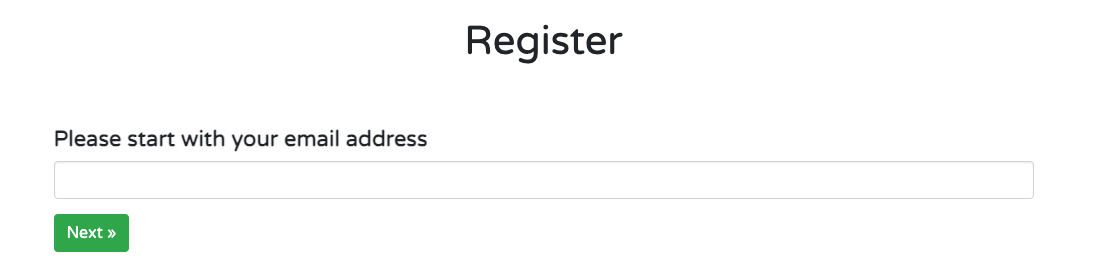
- If the email is not recognised, they are shown the full registration form to enter their details as a new person
- If the email is already in the directory, they are shown a login form so they can update their existing record
Step 2 — Registration form and privacy options
The visitor fills in their details and chooses their privacy preferences — for example whether they want to appear in the member-facing directory on the website. Basic spam protection is included automatically via a hidden field that bots cannot see.

Step 3 — Email confirmation
After submitting the form, the visitor receives a confirmation email asking them to verify their email address by clicking a link.

If you have set admin_email=TRUE, at this point the site admin also receives an email with a link to the newly registered household in the dashboard — so you can review it before doing anything further.

Step 4 — Confirmation and approval
When the visitor clicks the link in their confirmation email they are taken back to your site and shown a confirmation message.

All the email templates can be configured – how to configure registration email templates
In the dashboard, the household’s privacy record will now show as confirmed. Before confirmation it shows as unconfirmed, so you can easily spot registrations that are still pending.
What happens after registration
By default, a newly registered person is added to the directory but is not automatically given a WordPress user account. This gives you the chance to review the registration and decide whether to create an account for them manually from Church Admin → People.
If you prefer new registrations to automatically receive a subscriber-level WordPress account as soon as they confirm their email, you can change this in Church Admin → Settings — uncheck the relevant option.

Registration on the app
The Our Church app shows a simplified registration form for new visitors, but uses the same email confirmation and admin notification process as the website version. Any registrations via the app appear in your directory in exactly the same way.