✓ Free ⭐ Premium
Every person in Church Admin belongs to a household. Adding a household is therefore the starting point for getting anyone into your directory. The process has two parts — the people in the household, and the address they share.
Not sure what a household is? See What is a household? first.
Adding a new household
Go to Church Admin → People → Add household. The form that appears is split into two sections — people and address.
Part 1 — Adding people
Fill in the details for the first person in the household. The fields available are:
Name fields
First name and last name are always shown. Middle name, prefix (e.g. Rev, Dr), and nickname fields can be switched on in Church Admin → Settings if you need them.
Personal details
- Date of birth — click the field to pick a date from a calendar, or leave it blank
- Gender and Marital status
- People type — Adult, Teenager, or Child by default; these can be customised in Settings
- Member type — select from your configured member types (e.g. Member, Regular Visitor, Friend)
- Site — which church site this person belongs to, if you run multiple sites
Contact details
- Email — important for sending bulk emails and automated messages; without it you can’t communicate with this person through Church Admin
- Cellphone / mobile — used for SMS if you have Twilio set up
Adding more people to the household
Click Add person to add another member of the same household — a spouse, child, or anyone else living at the same address. Repeat until everyone in the household has been added. Each person gets their own set of fields but will share the address you enter in Part 2.
Part 2 — Adding the address
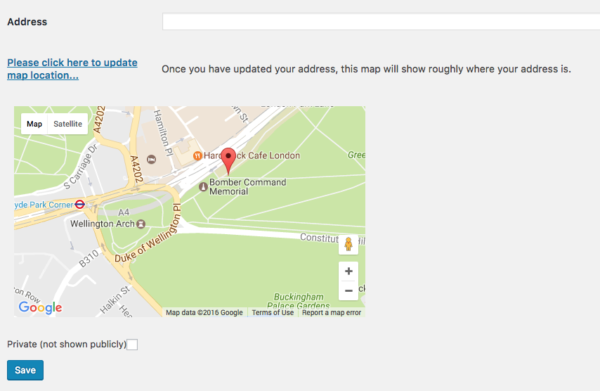
Once you’ve added all the people, fill in the household address and home phone number. The address belongs to the household, not to any individual — so all members share it, and you only need to update it in one place if they move.
Setting the map location
If you have a Google API key set up, a map will appear below the address fields. Type the address with commas between each part and click Please click here to update map location. A pin will drop at the approximate location — you can drag it to the exact spot if needed. This saves the precise latitude and longitude so the household appears correctly on the people map and any address list shortcodes on your website.

Private households
Ticking Private means this household can still receive emails and SMS through Church Admin, but their details won’t appear in any public-facing directory shortcodes on your website, and they won’t be findable by other members in the member directory. Use this for people who want to stay connected but prefer not to be listed.
Saving
Click Save when you’re done. The household and all its members will appear in your People directory. You can return to edit any detail at any time by finding the household in the directory and clicking Edit.
Editing an existing household
Go to Church Admin → People, find the household in the directory list, and click Edit. The same form appears with all the existing details pre-filled. Make your changes and click Save.
Common reasons to edit a household include a change of address, a new phone number, adding a new baby or child, or updating someone’s member type after they become a full member.