✓ Free ⭐ Premium
Church Admin automatically generates a podcast RSS feed from your sermon library. Once your feed is set up, you can submit it to Apple Podcasts, Spotify, and Amazon Music so people can subscribe and receive new sermons automatically without visiting your website.
Before you start
You need at least a few sermons uploaded with audio files before submitting to podcast directories — the directories check your feed for content during the submission process. Upload some sermons first at Church Admin → Media → Add sermon. See Upload sermon.
Step 1 — Configure podcast settings
Go to Church Admin → Media → Podcast settings and fill in all the fields. Apple, Spotify, and Amazon are particular about what the podcast feed contains — incomplete or incorrectly formatted settings can cause submission to fail.
The most important field is the podcast artwork image — it must be:
- At least 1400 x 1400 pixels square (3000 x 3000 is recommended for best quality)
- JPG or PNG format
- Under 512KB file size
After saving, your podcast RSS feed URL is shown at the top of the Podcast Settings page. Copy this URL — you’ll need it for all three directories below. Right-click the link and choose Copy Link Address.

Paste the RSS feed URL into your browser and check it loads correctly — it should display XML data without any errors. If it shows an error page, check your podcast settings are complete and that at least one sermon has an audio file attached.
Step 2 — Submit to Apple Podcasts
You need a free Apple ID — you don’t need a Mac or iOS device to create one.
- Go to podcastsconnect.apple.com/my-podcasts/new-feed
- Sign in with your Apple ID
- Paste your podcast RSS feed URL and click Validate

- If validation passes, submit the podcast for review. Apple typically approves within 24–48 hours.
- Once approved and live, find your podcast in the Apple Podcasts app, click the three dots, and choose Copy Link
- Go back to Church Admin → Media → Podcast settings and paste the link into the iTunes link field. Save.

The Apple Podcasts link now appears on your public sermon page so visitors can subscribe directly.

Step 3 — Submit to Spotify
You need a free Spotify account.
- Go to podcasters.spotify.com and log in
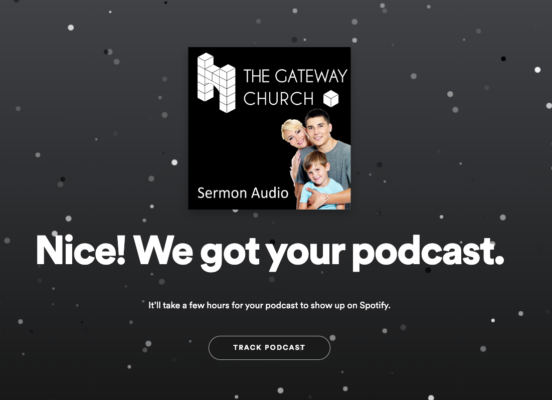
- Click Get started and paste your podcast RSS feed URL when prompted

- Follow the steps to confirm ownership and complete the submission
- Once approved and live, find your podcast in Spotify, right-click, choose Share → Copy Show Link
- Go back to Church Admin → Media → Podcast settings and paste the link into the Spotify Show Link field. Save.

Spotify also provides listener statistics — how many people have played each episode — which is useful for understanding your reach.
Step 4 — Submit to Amazon Music
You need a free Amazon account.
- Go to podcasters.amazon.com and log in with your Amazon account
- Paste your podcast RSS feed URL
- Amazon sends a confirmation email to the email address in your Podcast settings — click the link in the email to confirm ownership
- Amazon emails you the podcast URL once approved — copy it and paste it into Church Admin → Media → Podcast settings in the Amazon Music field. Save.

Refreshing the podcast feed
Church Admin updates the podcast feed automatically when new sermons are added. If a podcast directory isn’t picking up new episodes, use Church Admin → Media → Refresh podcast feed to force an immediate feed regeneration. See Refresh podcast feed.
Related tutorials
- Upload sermon
- Sermon series
- Refresh podcast feed
- Using SoundCloud in sermons
- Using Amazon AWS S3 cloud for sermons