Importing Your Members Using the CSV Import
Step 1 — Prepare Your Spreadsheet
You need to prepare a comma separated values (CSV) file with the first row as column headers. You can include the standard fields and up to 5 custom columns. The address can be all in one column or spread over up to 5 columns.
The easiest way to start is to download the official template That way your column headers are already in the right format.
Each person needs to be on their own row. The plugin will automatically group people who share the same address into the same household. So if a married couple both appear in your spreadsheet with the same address, they will be imported as a single household with two members — you do not need to do anything special to make that happen.
When your spreadsheet is ready, save or export it as a .csv file from Excel, Google Sheets, or whichever programme you are using.
Step 2 — Open the Import Tool
In your WordPress dashboard, go to Church Admin and look for the People box on the main screen. Select “Import CSV” from that box to open the import tool.

Step 3 — Upload Your File
Check “Overwrite current address details?” if you want to replace what is currently stored, then click the Upload button to upload your file.
Leave that checkbox unticked if you are doing a first-time import or want to add new people without touching existing records.
Step 4 — Map Your Columns
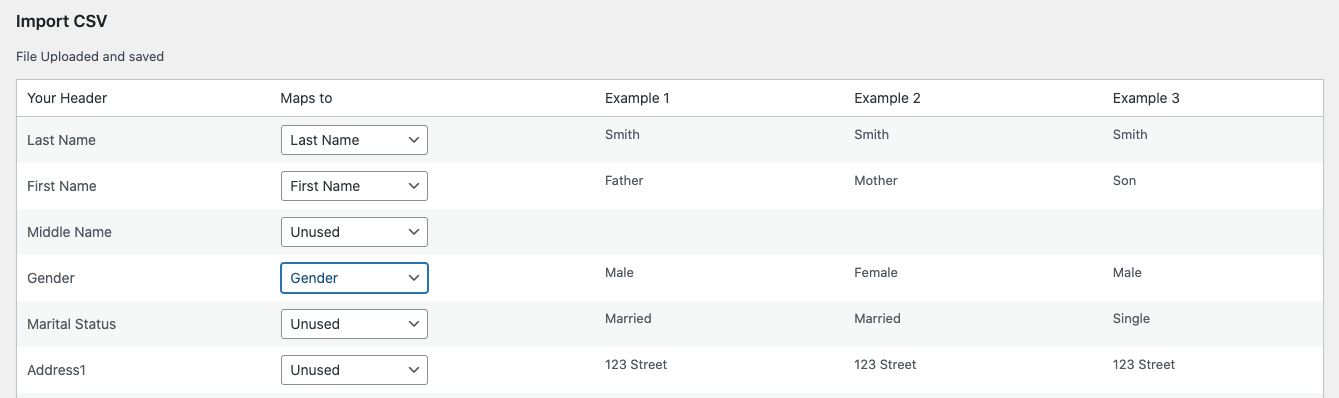
On the next screen you will have the opportunity to map your columns to the plugin’s fields. A few rows of data are shown to help you choose. Leave any columns you cannot match set to “unused.”
This is where the plugin connects your spreadsheet columns (e.g. “Surname”, “Mobile”, “Postcode”) to the correct fields in Church Admin. Take your time here — getting the mapping right means your data lands in the right places first time.
Step 5 — Save
Once your columns are mapped, click Save and the import will run. Your members will then appear in the Church Admin address list, grouped into households by address.
Tip: If you have a large congregation, it is worth doing a test import with just a handful of rows first to check everything maps correctly before importing everyone.