⭐ Premium
The Follow Up Funnels module helps your church track the journey of visitors and newcomers from first visit through to membership — assigning specific tasks to team members at each stage and recording when they are completed. What gets measured gets better, and funnels make the follow-up process visible and accountable.
Why follow-up matters
Research by Herb Miller in Magnetic Church found that prompt follow-up makes a significant difference to whether a visitor returns:
- 85% of guests return if visited within 36 hours
- 60% of guests return if visited within 72 hours
- 15% of guests return if visited within 7 days
A follow-up funnel gives your team a structured, trackable way to act on those numbers without relying on memory or informal communication.
How funnels work
A funnel is a series of follow-up actions linked to a member type. Each action in the funnel represents a step in your process — a welcome card, a pastoral visit, an Alpha invitation, a joining day — and each step can be assigned to a specific team member to complete.

When a new person is added to the directory or their member type changes, the appropriate funnel appears in the Recent People Activity screen. From there an admin can assign the next step to a team member. The assigned person is notified by email and can mark the step complete when done — at which point the next step in the funnel becomes available.
Setting up — the order to follow
Step 1 — Define your member types
Member types represent the stages of someone’s journey into the church. A typical progression might be:
- Visitor — attended once and filled in a welcome card
- Irregular Attender — coming occasionally but not consistently
- Regular Attender — coming consistently but not yet a formal member
- Member — attended a joining day and formally committed to the church
Go to Church Admin → People → Member types to create your member types and drag them into the order that reflects your journey. See Member types.

Step 2 — Set up your ministry teams
Work out which teams will be involved in your follow-up process and create a Ministry for each one. Typical examples include a welcome team, a visitation team, a small group leaders team, and an elders team. Each funnel step is assigned to a member of the relevant ministry. See Ministries, small groups and classes.
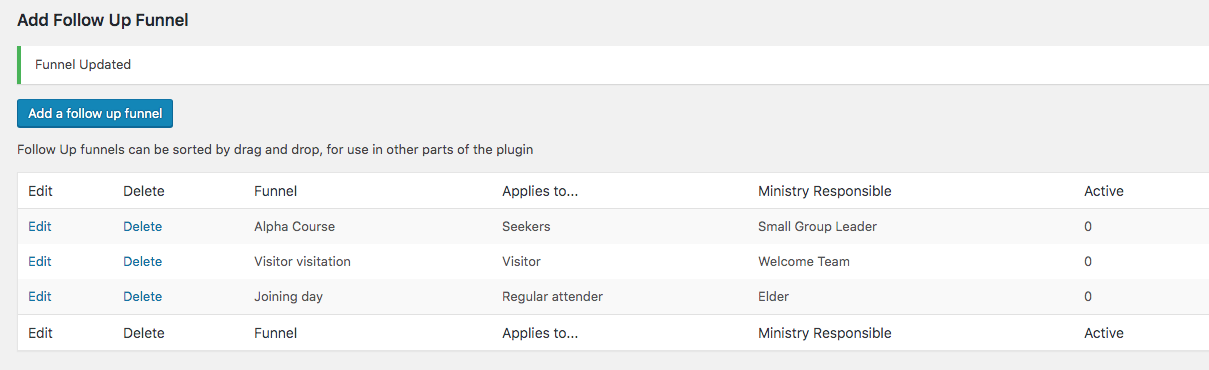
Step 3 — Create your funnels
Go to Church Admin → Follow Up → Add funnel. Create one funnel for each step in your process, linking each to the appropriate member type and the ministry team responsible for that step.

Using funnels day to day
Once funnels are set up, the day-to-day workflow runs through the Recent People Activity screen at Church Admin → Follow Up → Recent people activity. When a new person is added or a member type is updated, a dropdown appears in the Follow Up Action column letting you assign the appropriate funnel step to a team member.
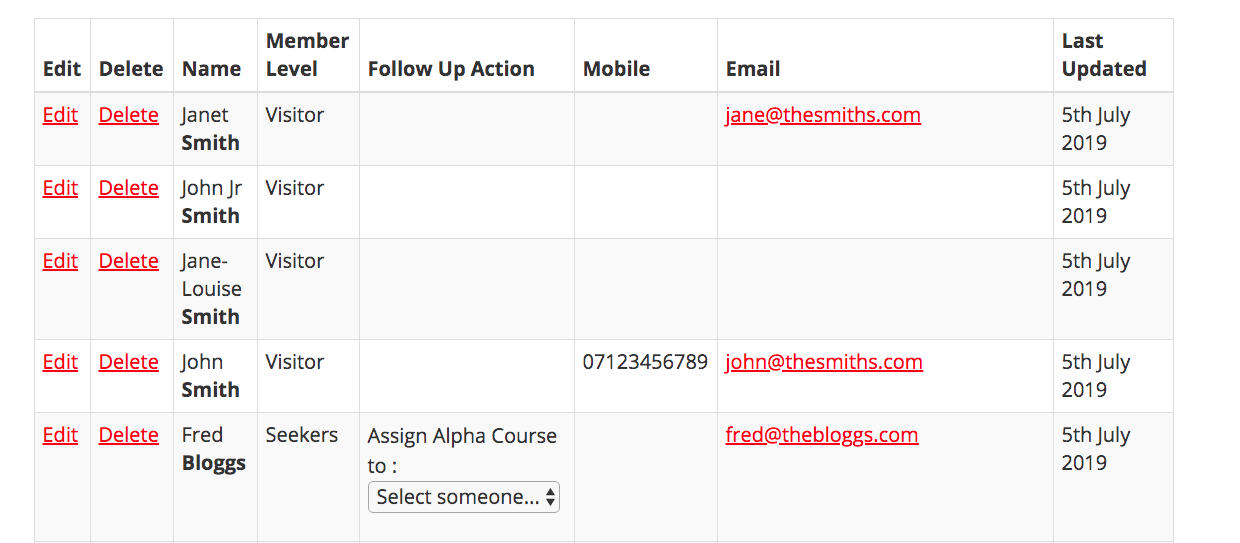
The assigned team member receives an email notifying them of their task. When they have completed it, they click a link in the email and the step is marked as done. A link at the top of the Recent People Activity screen lets you email all currently assigned people their outstanding tasks at once — useful on a Monday morning after a busy Sunday.
Viewing tasks
Three screens give different views of the current task list:
- My follow up tasks — shows only the tasks assigned to the currently logged-in user
- Current follow up tasks — an admin view of all active tasks across all team members
- Unassigned follow up tasks — tasks that have not yet been assigned to anyone and need attention
Front-end shortcode
Team members can view and manage their own follow-up tasks without accessing the WordPress dashboard using the shortcode on a members-only page:
[church_admin type="follow-up"]This makes it accessible to volunteers who are not WordPress administrators. See Members only content for how to restrict the page to logged-in users.
Related tutorials
- Member types
- Ministries, small groups and classes
- Recent people activity
- My follow up tasks
- Current follow up tasks
- Unassigned follow up tasks
- Add a funnel
- Members only content
- Creating user accounts